











Dynamics 365 Business Central Integration
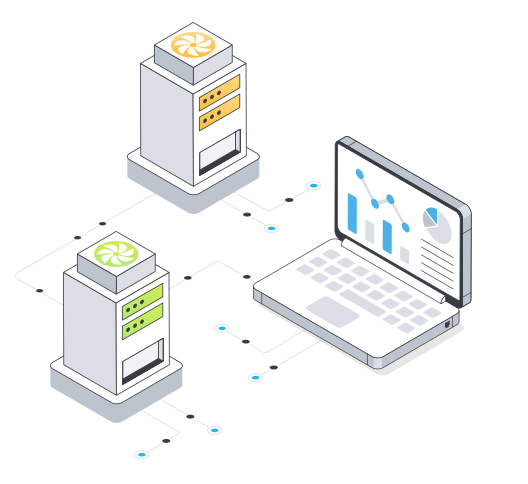


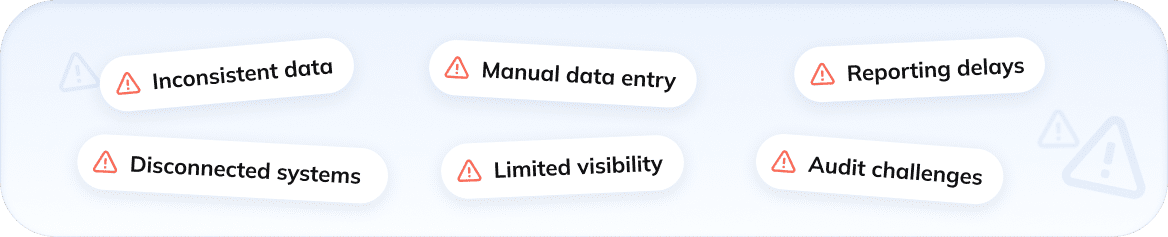
Close Process Gaps Through Unified Integration Services
Business Central Integration Capabilities

- Shopify
- Online marketplaces
- EDI platforms

- 3PL providers
- Shipping systems
- WMS

- Tracking software
- Time entry tools
- D365 Project Operations

- Microsoft Teams
- Microsoft Outlook
- Document management systems

- Campaign tools
- Marketing platforms
- D365 Customer Insights

- Power BI
- Jet Reports
- Data warehouses
Native Business Central Integration


Business Central and Dynamics 365 Integration Services and Beyond


Your Official Microsoft Dynamics 365 BC Integration Partner


See More Dynamics 365 BC Services


What our clients say about us







Our clients journeys














Who we are
About usGlorium Technologies is a full-cycle app & software development company which covers specific client business needs and manage them with the help of the best possible technology solutions.
Since 2010, we have been inventing digital breakthroughs, helping startups and businesses come out on top in their markets.

Why choose us






Certifications








Let's Connect!



FAQ
How secure is data stored and shared through Business Central Dynamics 365?
The ERP system protects your information through encryption, controlled access, and detailed security roles that define what each user can view or change. Whether you share data across teams, sync with online versions, or use it in integrations, it remains safe. Clear connection settings and structured permissions help maintain oversight, reduce risks, and support confident decision-making as your business grows.
Do I need technical expertise to complete the Dataverse connection setup?
As Business Central provides guided steps that walk you through the basics, you can manage without great technical skills. However, more complex scenarios—such as custom fields, app integrations, or security roles—may require support from an integration partner to ensure everything works correctly.
Can I customize data synchronization rules to fit my business needs?
It is up to you to decide how information syncs between systems. You can choose which records to include, apply custom fields, and adjust integration settings to match daily operations. Tools such as integration table mappings or standard mapping help keep sales data, price lists, and other details consistent across two solutions, supporting workflows that fit your business needs.
Which records does the standard sales entity mapping cover in Business Central?
Standard mapping includes customer details, items, sales quotes, and sales orders, among others. As these records adhere to standard settings, they maintain data alignment across systems, meaning your salespeople can work with the same info when processing orders or managing follow-ups. Administrators can review the setup guide and table lists to understand how each field is synced and adjust configurations if product versions or workflow changes require updates.
What is a virtual table, and how is it used in integrations?
It lets the ERP system read and work with data from another system without storing a separate copy. This allows your team to interact with external records like customers, items, or orders as if they were native Business Central data. It helps your teams view and use shared records in real time, reducing the risk of integration synchronization errors. You can review standard settings or use a related link to understand how each table behaves during the sync process.
Why does Business Central require me to choose sign for certain fields during setup?
When you set up an integration, Business Central asks you to choose a sign so it knows whether a value should count as an increase or a decrease as data moves between systems. This helps keep totals and updates consistent. You can review the following table in the setup guide and re-enable settings if your workflows or connections to other Dynamics systems change.
What can I manage from the Power Platform Admin Center when integrating Business Central?
You can review environments, monitor data flows, and manage how Business Central connects to other apps. The Admin Center also helps you check whether each integration user has the right permissions and whether automated tasks run as expected. If something needs attention, you can adjust settings without disrupting daily work or slowing your team.
What does a job queue entry control do in Business Central?
It controls scheduled tasks that the ERP system runs automatically, such as posting updates, syncing data, or sending notifications. It lets you decide when and how often these tasks run, so routine work continues in the background without interrupting your team’s daily activities.
Why do I need an administrator user account for certain integration tasks?
You need higher-level permissions to modify settings, manage connections, or approve changes that affect multiple systems. An administrator user account ensures you can complete these steps safely, whether you’re adjusting assisted setup options or validating data that helps your team confirm they have enough inventory before processing orders.