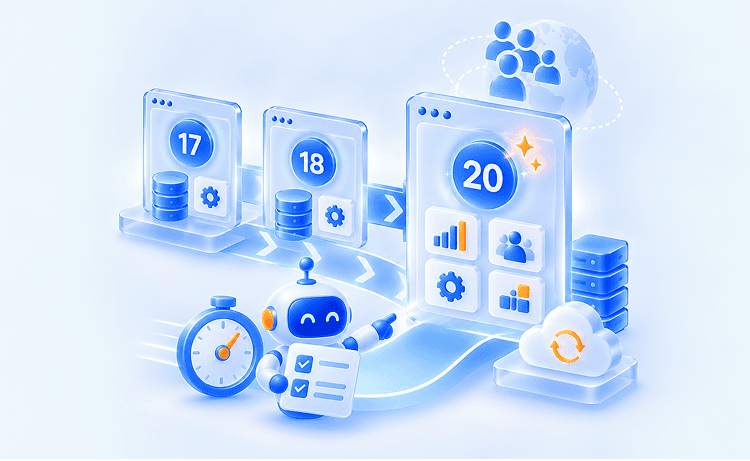
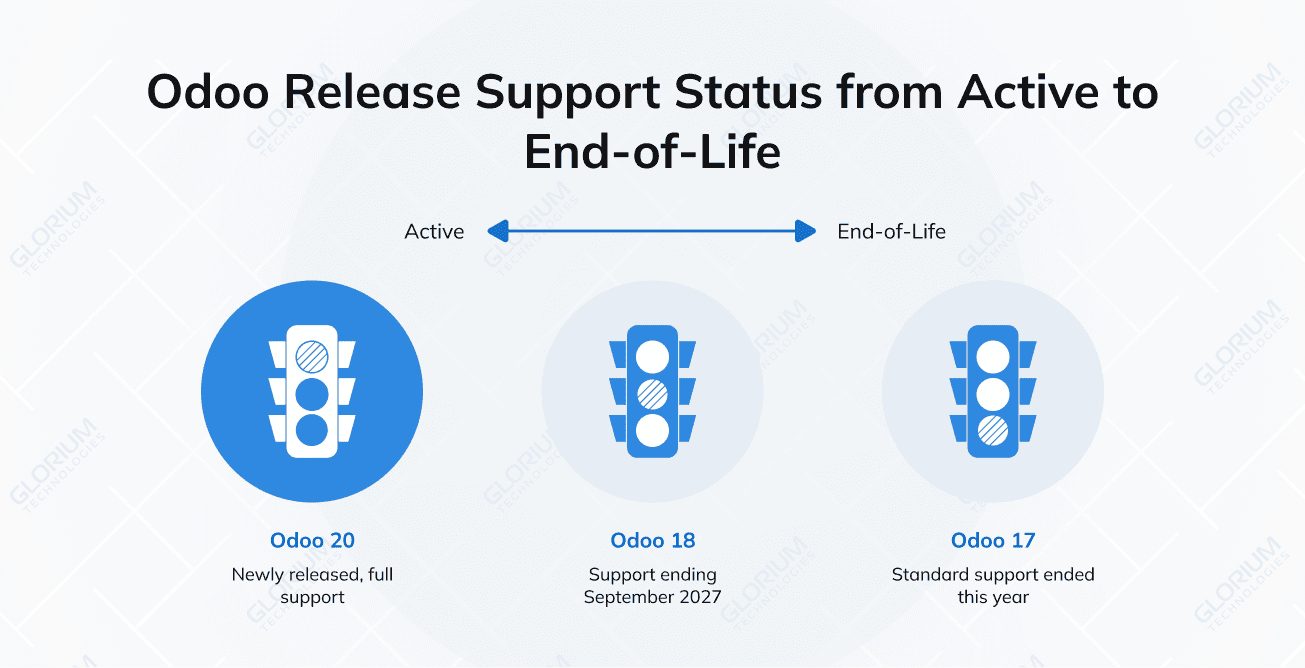
Odoo 20 was introduced at Odoo Experience in Brussels on September 24, 2026, and Odoo now reports 28 million users worldwide. However, for thousands of businesses, the launch also started a countdown. Odoo provides a strict three-year support lifecycle for each major release, and the arrival of version 20 signals the end of standard support for Odoo 17 this year. Meanwhile, Odoo 18 enters its final year of support, heading toward a September 2027 deadline. For organizations running either release, the time to plan a major upgrade is now.
An ERP upgrade succeeds or fails long before anyone runs the production migration. Most ERP projects exceed their budgets for a single reason: late-stage technical surprises and system misfits. An Odoo version upgrade repeats this exact pattern on a smaller scale through forgotten integrations, unported custom modules, and third-party apps lacking an Odoo 20 equivalent.
This guide focuses on the critical prep work that decides the outcome, from compatibility checks to post-migration validation. You will see what changed in Odoo 20, discover the optimal upgrade path for your current version, and get a clear framework for estimating costs and downtime.
Content
What Is Odoo 20 Migration?
It’s the migration process of your database, filestore, custom code, and connected systems from a previous version of Odoo to version 20. It’s more than a version switch; three layers move simultaneously, each with its own rules.
- Standard data and apps: Odoo manages data and standard module upgrades for Enterprise databases using its own migration scripts.
- Custom code: Developers port all custom modules, views, reports, and automation to the new version
- External systems: Integrations and AI connectors must use Odoo 20’s APIs before going live
This description also applies to migration to Odoo 20 from QuickBooks, NetSuite, SAP Business One, or spreadsheets, but each of them calls for dedicated data mapping.
Top Three Reasons to Migrate to Odoo 20
Upgrading to Odoo 20 can make for a priority for this year for 3 main reasons. First, expiring support for legacy versions; second, a built-in AI layer to transform your daily tasks; and third, major functional updates across key apps. Treat the upgrade as a strategic business change, an opportunity to elevate the way your teams work.
Support deadlines that shape your timeline
Odoo 20 is now backed by three years of standard support through September 2029. Under Odoo’s rolling lifecycle policy, previous releases remain supported on a staggering schedule: Odoo 19 is covered until September 2028, and Odoo 18 until September 2027. After the end of standard support, there is an extended support service for some versions deployed on Odoo.sh or on your own servers, but it is a paid service.
One upgrade rule is often misread by teams. Odoo’s support policy lets you upgrade from any version, but only to targets that are still supported or left support less than six months ago. That window applies to Odoo 17 as a target until about March 2027, not to Odoo 17 as your starting point.
AI features and AI agents unveiled at Odoo Experience
Odoo 20 transforms AI from a simple Q&A assistant into an active worker within your database. Powered by dedicated AI agents, the system can now create records and update records automatically, even extracting structured data directly from an uploaded PDF. These agents can also be integrated into automated and scheduled actions, taking over repetitive background tasks. Beyond native capabilities, Odoo supports the model context protocol, allowing external intelligence tools to securely connect to your database. Keep in mind that as these AI features take on real operational workloads, they consume credits purchased through In-App Purchase, so usage should be factored into your project budget.
Field Service moves into Planning, plus offline mode
Odoo 20 reshapes several daily workflows, and your team will feel the difference as soon as they log in. The biggest shift involves the retirement of the standalone Field Service app. As Field Service moves under the Planning module umbrella, dispatching becomes significantly more intuitive: schedulers can now monitor technicians on a live map, toggle to a spatial map view of assigned shifts, automatically calculate travel fees, and manage scheduling right within the familiar Gantt view.
Beyond field operations, here are the other critical app changes to communicate to your department leads:
- Offline mode: Users can create, edit, archive, and delete records without a connection and rerun earlier searches
- Finance: Bills can be paid one by one or in batches with a single signature through the new payment initiation service provider interface
- Manufacturing: With continuous production, the next operation starts once some quantities are ready, and the shop floor uses one Produce button
- Inventory and eCommerce: Reordering rules suggest stock levels from demand history, and online stores can set minimum order quantities
- Point of Sale: Stores can add service fees, connect multiple printers, and track stock without installing the inventory app
What to Prepare Before Migration
Preparation turns an unpredictable project into a scheduled one. Before you request anything from Odoo, you need a full picture of what runs in your database and what Odoo 20 already covers. The three tasks below give your team that picture and a safe place to work.
Run an upgrade audit and build a module inventory
An upgrade audit records every element that could break or delay the move. Start with a module inventory that lists each installed app, its source, its owner, and the process it supports. Then add the facts below to the same project file.
- Platform: Version, edition, hosting type, PostgreSQL version, database size, and yearly data volume
- Custom code: Custom modules, Odoo Studio changes, custom reports, and server actions with named owners
- Third-party code: Third-party modules from the Odoo Apps Store and OCA repositories, with vendor contacts
- Connections: Every integration, its protocol, its data direction, and the team that depends on it
Get Your Odoo 20 Migration Roadmap
Map your modules, integrations, and data, then move to Odoo 20 with a plan your team can test and follow.
Score custom code against Odoo 20 standard features
Odoo’s upgrade documentation tells you to stop development and challenge every customization before you port anything. Compare each module with the Odoo 20 release notes and mark it keep, replace, or remove. Picture a custom module that toggles tax-inclusive pricing on quotes. Odoo 20 now offers a tax-inclusive switch on sales orders, purchase orders, and invoices, so that code can retire.
For the code you keep, our guide to Odoo customization best practices explains how to build it so future upgrades cost less.
Freeze development and clone production to staging
Pick a migration window, announce a code freeze, and stop new development on the source system. Next, restore a production copy into an isolated staging environment that cannot send emails or call live APIs. This copy becomes the rehearsal space for every round that follows, and it is the right moment to start planning user training.
Main Odoo 20 Migration Requirements
Your requirements depend on edition, hosting, and the version you run now. Enterprise subscribers use Odoo’s upgrade platform, while Community users rely on tooling from the Odoo Community Association. Servers you host yourself also need a newer technical stack before Odoo 20 can start.
|
Hosting |
How you request the upgrade |
How custom code is handled |
|
Odoo Online |
Database manager or the Upgrade section of your subscription, with a test run first |
You cannot create or install custom Python modules on this platform |
|
Odoo.sh |
Upgrade tab on a staging branch, then on the production branch |
The platform updates custom modules after it restores the upgraded database |
|
Your own servers |
Command line or upload form on upgrade.odoo.com |
Your team updates each module with the -u option |
As of mid-October 2026, Odoo’s upgrade request form still lists 17.0, 18.0, and 19.0 as targets. In the initial weeks after a major launch, Odoo’s upgrade team homes in on stabilizing migration paths for mature releases before opening 20.0 as an official target. Use that gap to port code and consider waiting for the first stable patches before you move production.
If you run Odoo on-premises, the Odoo 20 source install guide raises the minimums to Python 3.12 and PostgreSQL 16. Teams with heavy reporting can also send read-only transactions to a replica through the –db_replica_host option, so include that setup in staging.
Migration paths by starting version
The number of versions you skip changes the work more than the jump itself. Odoo’s platform can move a database across several versions in one request. Custom code, however, must absorb the breaking changes of every major release in between. Find your path in the table below.
|
Starting point |
Database path |
Code work |
|
Odoo 19 Enterprise |
One upgrade request to 20.0 |
Changes from one release only |
|
Odoo 17 or 18 Enterprise |
One request across several versions |
Changes from every skipped release, so a direct jump is never one version of work |
|
Odoo 16 or older |
Possible across many versions |
Compare the porting effort against a fresh implementation |
|
Community edition |
OpenUpgrade from the OCA, run version by version |
Same porting work, on a community release schedule that trails Odoo’s service |
|
Community to Enterprise |
Edition switch plus a version upgrade |
Review your apps against their Enterprise equivalents |
Step-by-Step Odoo 20 Migration Guide
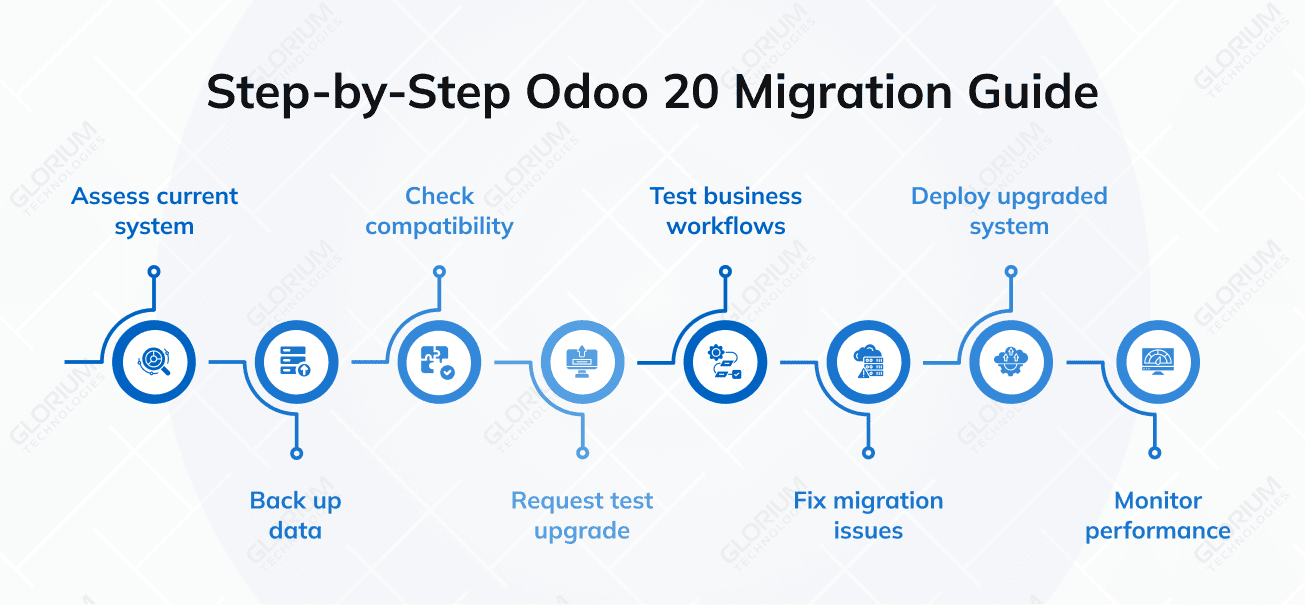
Before touching your production environment, Odoo strongly recommends testing a full copy of your database. The exact execution will vary depending on the hosting environment, but the following eight-step guide provides a clear blueprint for Odoo Online, Odoo.sh, and self-hosted deployments. Use this framework as your upgrade guide to plan, execute, and adapt each step to your team’s workflow.
- Assess your current system: Review your version, apps, custom modules, Studio changes, and integrations against your module inventory
- Back up your data: Secure the PostgreSQL database, the filestore, the configuration file, and the exact source code of every addon
- Check compatibility: Make each custom module install on an empty Odoo 20 database and confirm every third-party app has a 20.0 release
- Request a test upgrade: Use the database manager on Odoo Online, the Upgrade tab on Odoo.sh, or the command line on your own server
- Test business workflows: Validate accounting, sales, purchasing, inventory, reports, and integrations with the people who run them daily
- Fix migration issues: Resolve errors, write upgrade scripts for custom data, and request a fresh test database after each round
- Deploy the upgraded system: Rehearse the cutover the day before, schedule downtime, and keep a tested recovery plan ready
- Monitor performance: Watch data integrity, automated actions, integrations, and user workflows closely in the first weeks
After each test run, read the upgrade report Odoo sends because it lists custom views the process disabled. On self-hosted servers, the test command is “python <(curl -s https://upgrade.odoo.com/upgrade) test -d <your_db> -t 20.0” once 20.0 opens as a target. If you use the upload form, Odoo asks you to run production within three days of a successful test.
For a customized database, going live is never a single click. Write down the manual steps of your cutover so nobody improvises on go-live night.
Plan the cutover and downtime window
Your downtime window covers the final backup, the production upgrade, module updates, and a smoke test by key users. On Odoo Online, you can trigger the upgrade directly when Odoo’s silent test upgrade finishes in under 20 minutes. Customized databases on Odoo.sh or your own servers add module updates and checks, so time each step during the rehearsal. Pick a weekend or quiet period that avoids payroll runs and month-end close.
Use this go-live checklist on the day:
- Freeze data entry and confirm every user has logged out
- Take the final database, filestore, and configuration backup
- Run the production upgrade and update every custom module
- Smoke-test sales, purchasing, inventory, invoicing, and each integration
- Confirm the go or no-go decision with every department owner
Database Backup and Data Validation
An Odoo version upgrade is an in-place transformation driven by automated platform scripts. You should never attempt to manually export and re-import data between major versions, as by doing so, you can break relational links and risk massive data loss. Because the system modifies your database structure directly, rigorous backups and post-migration validation are your primary safety nets: protect your source data first, then audit your figures to ensure complete financial and operational integrity.
Back up the database, filestore, and configuration
Before executing any test or production migration, create a full system snapshot. Start by taking a PostgreSQL database dump using pg_dump -F c, the standard format recommended by Odoo’s upgrade platform. A database dump alone will not preserve file attachments, so you must also back up your filestore, custom configuration files, and the exact Git commit of your custom addons. This backup routine is your first line of defense against data loss. Take this opportunity to archive old logs and combine duplicate records so you can get clean data into Odoo 20.
Then agree with finance and operations on which closed transactions, logs, and attachments stay live and which move to an archive. A leaner database is faster to upgrade, restore, and validate in every test round.
Validate accounting entries, stock, and open documents
Validation comes down to comparing your upgraded test database against your live source using the key figures your leadership trusts most. Run matching reports on both databases using the same cutoff date and then cross-reference accounting entries, transaction totals, and core record counts. You must analyze and resolve each discrepancy before continuing to the next migration phase.
- Finance: Trial balance, aged receivables and payables, open invoices, and tax reports by period
- Chart of accounts: Check how account groups became parent accounts and whether reports expect account codes, which are now optional
- Payments and expenses: Review filters that read payment statuses, and test how approved expenses now become draft bills, as the Odoo 20 release notes describe
- Inventory: Compare stock valuation, on-hand quantities, and open transfers for each warehouse and location
Moving from QuickBooks, NetSuite, or another ERP needs field mapping, cleansing, and opening balances, which our guide to Odoo data migration best practices covers in detail.
Glorium Technologies applied this process when a US contract manufacturer moved off JobBOSS to Odoo 17. The team tested migration scripts on Odoo.sh and kept JobBOSS running in parallel during the first two phases, so production never stopped. After a phased 14- to 18-week rollout, job turnaround became 31% faster and month-end close dropped from 8 to 10 days to under three.
Custom Module and Integration Compatibility
Odoo’s standard upgrade only handles core data and out-of-the-box modules. Your custom modules, third-party apps, and external integrations call for manual porting. Odoo 20 introduces structural changes to the framework these customizations rely on. Knowing those changes upfront, you can keep your estimate honest and your schedule realistic.
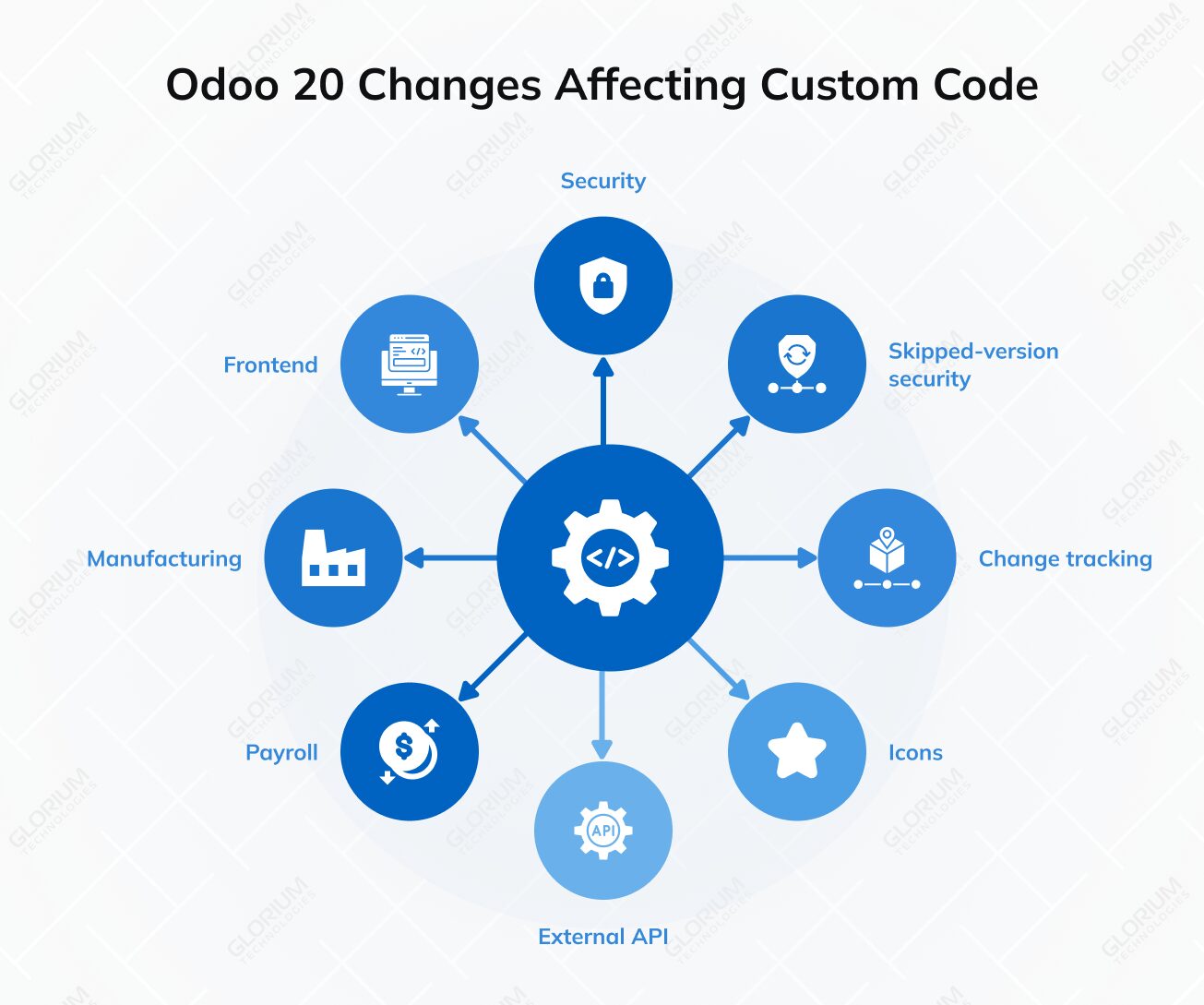
Odoo 20 changes that affect custom code
The changes below come from the Odoo 20 release notes and the 20.0 developer documentation. Each one can break a module that worked well on Odoo 18 or 19. Review them with your developers before you size the project:
- Security: Record rules were removed in Odoo 20, and each access right now carries a domain, so rebuild your access rules and retest access rights for every role
- Skipped-version security: From Odoo 17 or 18, you also absorb Odoo 19’s group refactor, where privilege_id replaced category_id and groups_id became group_ids
- Change tracking: Field changes are now stored in the chatter message body instead of mail.tracking.value records, so audit reports need Odoo’s dedicated module or a rewrite
- Icons: Odoo completely dropped the Font Awesome library and transitioned to Material Symbols as its primary icon system, which affects custom views, website themes, and training screenshots
- External API: JSON-2 is standard; XML-RPC and JSON-RPC deprecated, db service removed
- Payroll: Work entries were removed, so payroll that relied on them needs new logic for time off and working schedules
- Manufacturing: There is no more flexible consumption setting, and all manufacturing orders now accept consumption that differs from the bill of materials
- Frontend: Test every custom JavaScript and Owl widget, and check which Owl version your 20.0 build ships before you estimate
How to port custom modules
Odoo’s documentation sets a fixed order for porting work. First, uninstall every module your business no longer needs. Then make each remaining module install on an empty Odoo 20 database before you run it against your upgraded data. The odoo-bin upgrade_code command, available since Odoo 18, rewrites some deprecated patterns automatically. Business logic, view inheritance, and security still need a developer. Renamed fields or models need pre-, post-, or end-migration scripts, and Odoo’s upgrade-util library supplies helper functions for them.
In practice, a port touches four layers of every module: Python models and ORM calls, XML views and reports, JavaScript and Owl components, and security files with access rights.
Integrations and third-party apps set your real timeline
You cannot go live until every app you depend on has a 20.0 version. Check the Odoo Apps Store and the OCA 20.0 branches for each item in your module inventory and ask vendors for release dates. For integrations, plan the move to JSON-2, which authenticates with API keys sent as bearer tokens. Odoo’s documentation also limits external API access to Custom pricing plans, so confirm your subscription before you rebuild connectors.
If you run an accounting connector like the one in our Odoo QuickBooks integration blueprint, map each of its calls to a JSON-2 endpoint before the first test round.
Testing Before Production Deployment
Testing is where problems stay cheap to fix. Odoo lets you request multiple test databases, so plan for at least two or three rounds on a customized system. Every test round should involve the business users who run each process, alongside the developers who changed the code.
|
Team |
What to check in Odoo 20 |
|
Finance |
Bill lines suggested from bill history, batch payments, reconciliation, and tax reports |
|
Sales |
Quotes, discounts, commissions, and pricelist rules set by period or weekday |
|
Purchasing and inventory |
Reordering suggestions, receipts, transfers, and stock valuation |
|
Manufacturing |
Work orders, continuous production settings, component use, and costing |
|
Field teams |
Planning shifts, routes, travel fees, and offline work on mobile devices |
|
Administration |
Scheduled actions, mail servers, user roles, and printed reports |
Add three technical checks to every round:
- Performance: Time your slowest reports and list views on a copy with full production data
- Security: Log in as each role and confirm users see only the records they should
- Integrations: Push real transactions through every connector against the test database
You should close each round with a written sign-off from every department owner and treat the final round as formal user acceptance testing (UAT). Each department runs its real daily workflows end to end on the upgraded copy, and nothing moves to production until every owner approves.
Common Migration Challenges and Solutions
Most troubled upgrades repeat the same handful of mistakes. The biggest difference between a calm go-live and a stressful one is how early your team spots them. The table pairs each common problem with a practical fix you can add to your plan today.
|
Challenge |
Practical fix |
|
Starting close to a support deadline |
Begin the audit while your current version still receives standard support |
|
Skipping the test migration |
Run at least two full test rounds on a production copy |
|
Ignoring third-party apps |
Confirm 20.0 releases before you book a go-live date |
|
Porting features Odoo 20 now covers |
Score every module against the release notes first |
|
Forgotten XML-RPC integrations |
Search code and connector settings for /xmlrpc and /jsonrpc calls |
|
Untrained users |
Train teams on moved apps, new icons, and changed menus before cutover |
|
No rollback plan |
Define the point of no return and keep the old system ready until then |
Rollback planning makes the biggest difference
Your rollback window closes the moment users start posting transactions in the new system. Before that point, you can switch back to the source database with little effort. After that, every new entry must be reentered or migrated by hand, so set the point of no return in writing.
Odoo 20 Migration Costs and Timeline
Enterprise subscribers request the database upgrade through Odoo’s platform with their subscription code. That means the actual cost of the project sits in code porting, testing, and partner time. The drivers below explain why two companies using the same version can receive very different quotes.
Odoo’s documentation states that, with Odoo Enterprise, upgrading a database to the most recent version is free. That service covers standard apps and Odoo Studio customizations, plus custom code under a paid Maintenance of Customizations subscription. It excludes custom modules built in-house or by partners, code added to standard modules by hand, and automated actions written in Python code.
What drives your Odoo 20 migration cost
Cost grows with complexity, and complexity hides in a few predictable places. Count each item below during your audit because each one adds hours to porting, testing, or both. The list also shows where trimming scope saves the most money.
- Custom modules: Each one adds porting, code review, and regression testing hours
- Third-party apps: Paid apps may need new licenses, and unported apps need a replacement or an in-house port
- Integrations: Every connector built on XML-RPC needs a rebuild on the JSON-2 API
- Database size: Larger databases take longer to upgrade, restore, and validate in every round
- Versions skipped: Each version number you skip adds another set of breaking changes to absorb
- Test rounds: Every extra round adds analyst, developer, and business user hours
Typical timelines by complexity
Timelines follow the same drivers as cost. A version upgrade reuses your existing configuration, so its length depends mostly on code and data scope. Use these tiers as a starting point for your own plan.
Here is our estimate for your Odoo 20 upgrade. Since Odoo’s built-in service covers your standard database migration, our hours focus on everything custom: your modules, integrations, thorough testing, and full go-live support.
|
Scope |
Light |
Moderate |
Complex |
|
Starting point |
Odoo 19, few customizations, no XML-RPC integrations |
Odoo 17 or 18, several custom and third-party modules, a few integrations |
Odoo 16 or older, many modules, multi-company setup, complex integrations |
|
Total effort |
40–60 hours |
80–120 hours |
200–400 hours |
|
Timeline |
About 2 weeks |
About 3–4 weeks |
About 6–8 weeks |
|
Scope of work |
Audit of custom modules and Studio customizations; test upgrade via Odoo’s service and upgrade report review; porting custom modules to Odoo 20 (new access rights model (ir.access), Owl 3 frontend, ORM changes); functional testing and UAT support; production upgrade, smoke test, and post-go-live support |
Everything in Light, plus: code changes accumulated across versions 18, 19, and 20; third-party modules checked for 20.0 availability, then ported or replaced; XML-RPC integrations moved to the JSON-2 API and database-service calls replaced, with regression tests; custom data migration scripts with accounting and stock reconciliation; UAT by department and key-user training |
Everything in Moderate, plus: port-or-rewrite decision per module and legacy view syntax (attrs/states); multi-company access rules and intercompany flows; integration redesign on JSON-2 with load testing; several test upgrades and a full rehearsal on production-size data; UAT per company, weekend cutover, and extended hypercare |
|
Developer |
20–30 h |
44–68 h |
110–220 h |
|
QA |
8–12 h |
14–22 h |
36–76 h |
|
Business analyst |
6–8 h |
12–16 h |
30–60 h |
|
PM/client communication |
6–10 h |
10–14 h |
24–44 h |
Our total cost is calculated as estimated hours multiplied by our hourly rate (HoursRate). We will confirm final, fixed numbers after a brief audit of your database, modules, integrations, and hosting environment.
Odoo has not yet enabled version 20.0 as a target on its upgrade platform. Production migration will begin as soon as Odoo opens platform access.
Please note that Odoo platform/subscription fees, AI credits, hosting costs, third-party module licensing, and internal testing time required from your team are not included in the scope.
Post-Migration Checklist
Go-live opens the hypercare period, when your team watches the system closely and fixes small issues fast. Assign named owners and hold a short daily check-in during the first weeks. You can use this checklist to confirm the upgraded system behaves the way your teams expect.
- Confirm every automated and scheduled job ran on time without errors
- Reconcile the trial balance and stock valuation against the final source snapshot
- Push live orders through each integration and compare data on both sides
- Print invoices, delivery slips, and labels from every configured printer
- Review what each role can see after the security model change
- Apply Odoo’s stable patches on a schedule and test each one in staging first
- Keep the source database read-only and archived for audit questions
Estimate the Cost of Your Odoo 20 Upgrade
Tell us your version, modules, and integrations, and we’ll scope a realistic Odoo 20 upgrade budget.
Estimate the Cost of Your Odoo 20 Upgrade
Share your current Odoo setup for an accurate Odoo 20 upgrade estimate.
When to Hire an Odoo Migration Partner
While an internal team with solid Odoo experience and spare capacity can handle a straightforward upgrade, complex projects are a different story. When an upgrade involves heavy custom code, intricate integrations, or significant operational risk, bringing in an experienced partner quickly pays for itself.
Here are the key signals that mean you should pull in a partner before running your first test upgrade:
- Your team cannot port and test every custom module within one quarter
- Key integrations still depend on XML-RPC or on apps without a 20.0 release
- You run Odoo 17 or older and must absorb several versions of changes
- Finance or payroll reports rely on account groups, work entries, or stored tracking values
- Nobody on staff has led an Odoo cutover with a documented rollback plan
As a certified Odoo partner, Glorium Technologies helps companies plan and execute ERP version upgrades. Our Odoo migration services cover every stage of the journey, from auditing your existing modules to porting custom code for full version compatibility to running thorough regression tests before cutover. After go-live, our support team will be there for you and provide clear documentation to make sure your internal team fully owns the solution.
If you’re still deciding, check out our side-by-side Odoo 19 vs. Odoo 20 breakdown to learn the differences and how to plan your upgrade.
Once you’re ready, schedule a call with our Odoo team and get an upgrade roadmap customized to your modules and timelines.
FAQ
When will my Odoo Online database move to Odoo 20?
Odoo has not published a fixed date for moving Odoo Online databases to Odoo 20. Its upgrade documentation says a major version on Odoo Online must be upgraded every two years. You receive a notice in your database a few weeks before an automatic upgrade, and Odoo triggers it if you take no action by the due date. Request a test database as soon as the invitation arrives so your team controls the timing.
How do I migrate data from QuickBooks or Microsoft Dynamics into Odoo 20?
A move from QuickBooks, SAP Business One, Microsoft Dynamics, NetSuite, or spreadsheets starts with data mapping, cleansing, and agreed opening balances. Odoo’s import tool accepts an External ID column that has record IDs from your previous software. Those IDs allow you to link related records and run test loads without adding duplicates. Larger histories usually need ETL scripts that clean, transform, and load data through the JSON-2 API.
Can Glorium Technologies rebuild our XML-RPC integrations for Odoo 20?
Integration work is a core part of the Odoo practice at Glorium Technologies, ranging from accounting tools to e-commerce platforms. Our team maps each XML-RPC call to its JSON-2 equivalent, sets up API keys, and tests every connector against an upgraded copy of your database. We schedule this work early, because integrations often decide the go-live date. After launch, our support team monitors those connections during hypercare.
Should we upgrade to Odoo 19 first or wait for an Odoo 20 migration?
The answer depends on your support status and your appetite for two projects. Odoo 19 is a valid target today and stays in standard support until September 2028. If you run Odoo 17 and need a supported version quickly, Odoo 19 removes that pressure but adds a second upgrade later. Teams on Odoo 18 can port code to Odoo 20 now and upgrade once 20.0 opens as a target.
How does Glorium Technologies handle an Odoo 20 migration for heavily customized databases?
Glorium Technologies starts with an upgrade audit that scores every custom module against Odoo 20 standard features. Our developers port your existing modules, write custom data migration scripts, and run exhaustive regression tests against every test database. We guide your team through the cutover process step-by-step and record every change so you have clear ownership of your source code and a clean, detailed history to refer to when upgrading in the future.
About Anna Voznaya