








GP to Business Central Migration: A Complete Guide to Zero Data Loss
Updated April 1, 2026

 Summarize in ChatGPT
 Summarize in ChatGPT
Your GP to Business Central migration begins with an uncomfortable truth: the ERP system your finance team has relied on for years is approaching end-of-life, and “wait and see” is no longer a viable strategy.
A cloud ERP can strengthen your business in meaningful ways — reduced infrastructure costs, productivity gains, compliance readiness, and long-term scalability are all within reach. But the migration from Microsoft Dynamics GP to Dynamics 365 Business Central can feel daunting. With a thoughtful, structured approach, however, you won’t just make your systems easier to maintain going forward — you’ll set your organization on a clear path to longevity and operational efficiency.
The clock is ticking. Microsoft will end all product support, tax updates, and regulatory updates for Dynamics GP on December 31, 2029, with security patches ceasing on April 30, 2031. New perpetual license sales already ended in April 2025, and subscription license sales follow in April 2026. Waiting isn’t a strategy — it’s a countdown.
Given the complexity and the stakes involved, a structured, phased migration plan and experienced professional guidance aren’t just helpful — they’re non-negotiable
Content
The business case for migrating from Dynamics GP to Business Central goes well beyond avoiding end-of-support. The ROI data is compelling, and it shows four key areas that affect decisions about cloud migration management, cloud migration setup, and the decision itself—whether to migrate from GP to BC.
The four key areas are:
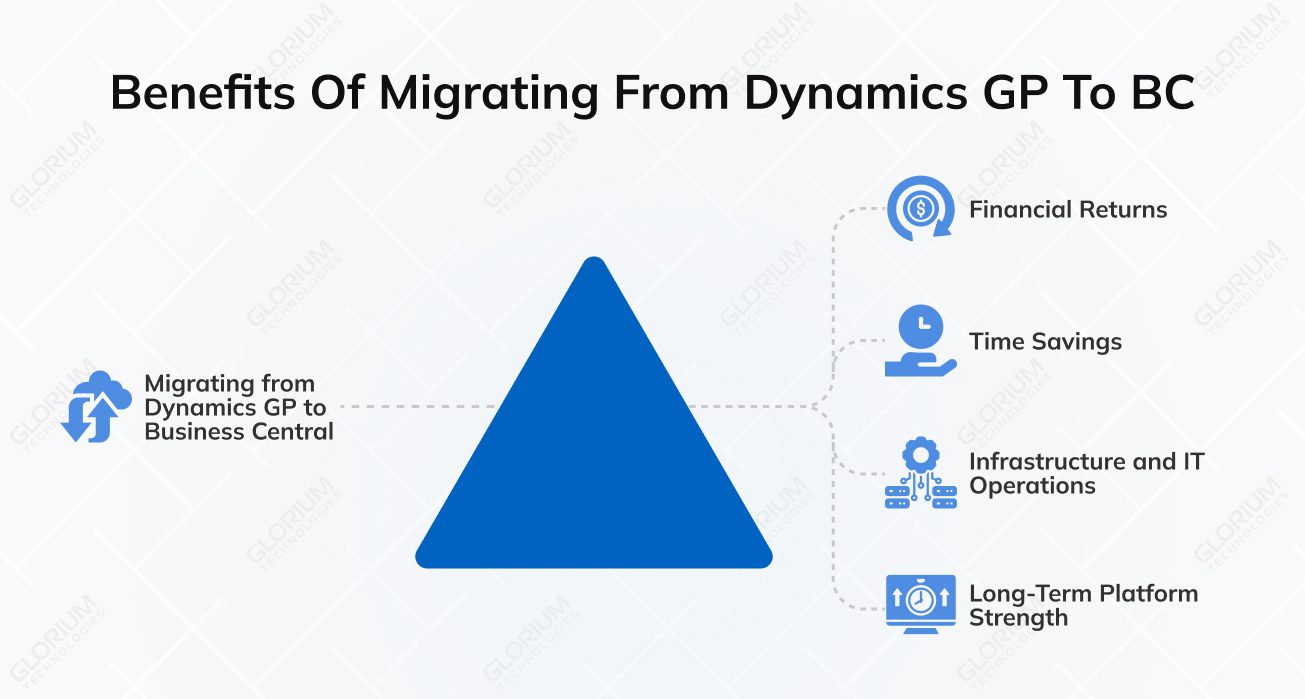
Data migration is not a cost, but an investment that has a measurable payback. We recommend looking at it as a strategic initiative, rather than a forced upgrade due to end-of-support or modernization pressure. Forrester TEI studies project more than 100% three-year ROI for enterprises and 16-month payback for midmarket organizations migrating to Dynamics 365 ERP. Your organization’s return on investment depends on current GP complexity, data volume, number of integrations, and how aggressively you plan the migration timeline.
Legacy ERP systems like GP accumulate friction over time. You must’ve noticed it already if you’ve been using GP—manual exports, disconnected processes, etc. Such issues accumulate over time and quietly drain hours from your most skilled people. One of the reasons businesses decide to go through the data migration process is the promise of time saved. According to The Total Economic Impact™ Of Microsoft Dynamics 365 ERP, personnel in finance, accounting, supply chain, and logistics saved 7-15 hours per week after migration, worth $8.9 million over three years to the composite organization. Additionally, if your company relies on more than a few GP customizations, migrating to BC can also help you streamline the processes that will save you even more resources over time.
If you’re not hosting your GP on the cloud and have it as an on-premise solution, you’re probably spending a lot of resources on maintaining servers, patching cycles, and more. Microsoft Dynamics BC is primarily a cloud-based ERP that removes the burden of on-premise ERP management (although BC can also be on-premises, for businesses that prefer a mix of safety and control). Many businesses report infrastructure and IT operations savings after moving to cloud ERP. According to Forrester, these savings reached $3.9 million over three years.
Microsoft Dynamics 365 was named a Leader in three Gartner Magic Quadrant reports for Cloud ERP: Service-Centric, Product-Centric, and Finance. And according to recent reports, Dynamics 365 revenue grew 23% year-over-year in Q4 FY25—the highest quarterly growth of the fiscal year. The platform is not slowing down, and the ecosystem of partners, extensions, and integrations is growing with it. These numbers highlight the long-term platform strength, helping organizations avoid infrastructure overhead, save time and money on manual processes, improve cross-department visibility through native Microsoft 365, Power BI, and Power Automate integration, and actively drive operational efficiency.
These results highlight why migration to BC is worth it. Your organization will see returns across operational efficiency and infrastructure savings. How quickly those returns materialize is determined by your migration approach and partner selection.
All migration projects require a structured process and careful preparation at every stage. Business Central provides companies with Microsoft tools to support the transition. For example, you can use the cloud migration management page as a centralized place to manage cloud migration activity, monitor data replication progress, and flag issues. That said, there are a few things you need to understand before securely migrating data. The migration process overwrites data in your cloud migration environment, so the sequence matters. Incorrect replication order or lack of validation can introduce errors that may cost a fortune to fix later.
In this part of the article, we’ll go through the end-to-end process for migrating from Microsoft Dynamics GP to Business Central, and show you when expert involvement is necessary.
Start by cataloging Dynamics GP data: data entities, customizations, integrations, and ISV add-ons. Your migration partner will want a complete picture of existing workflows and practices, and an early, detailed inventory prevents mid-migration surprises that derail timelines.
It’s best to work with a partner who has experience with clients in your industry. Ask other IT leaders in your vertical for referrals, explore the case studies of your potential vendors, and discuss their approach during the consultation. How much a migration engagement costs depends on a couple of different factors, like the size of your GP environment and the complexity of your customizations.
Before migration, assess your current GP environment. Identify your exact GP version (2015, 2016, 2018, or later), as this determines which migration tools and paths are available for your on-premises environment.
GP and BC use fundamentally different data structures and terminology. The field mapping exercise is where most teams discover how different Business Central actually is from their GP setup. Checkbook becomes Bank Account. Customer Class becomes Customer Posting Group. Site ID becomes Location Code. This is not a cosmetic renaming — it reflects a different data architecture underneath.
Start out by mapping your data entities and integrations in great detail, then produce a migration readiness scorecard using an assessment tool, covering customizations, compliance requirements, and data volume to share with your partner. Map how Dynamics GP users and user groups will translate to Business Central roles and permissions — this is easy to overlook at the audit stage.
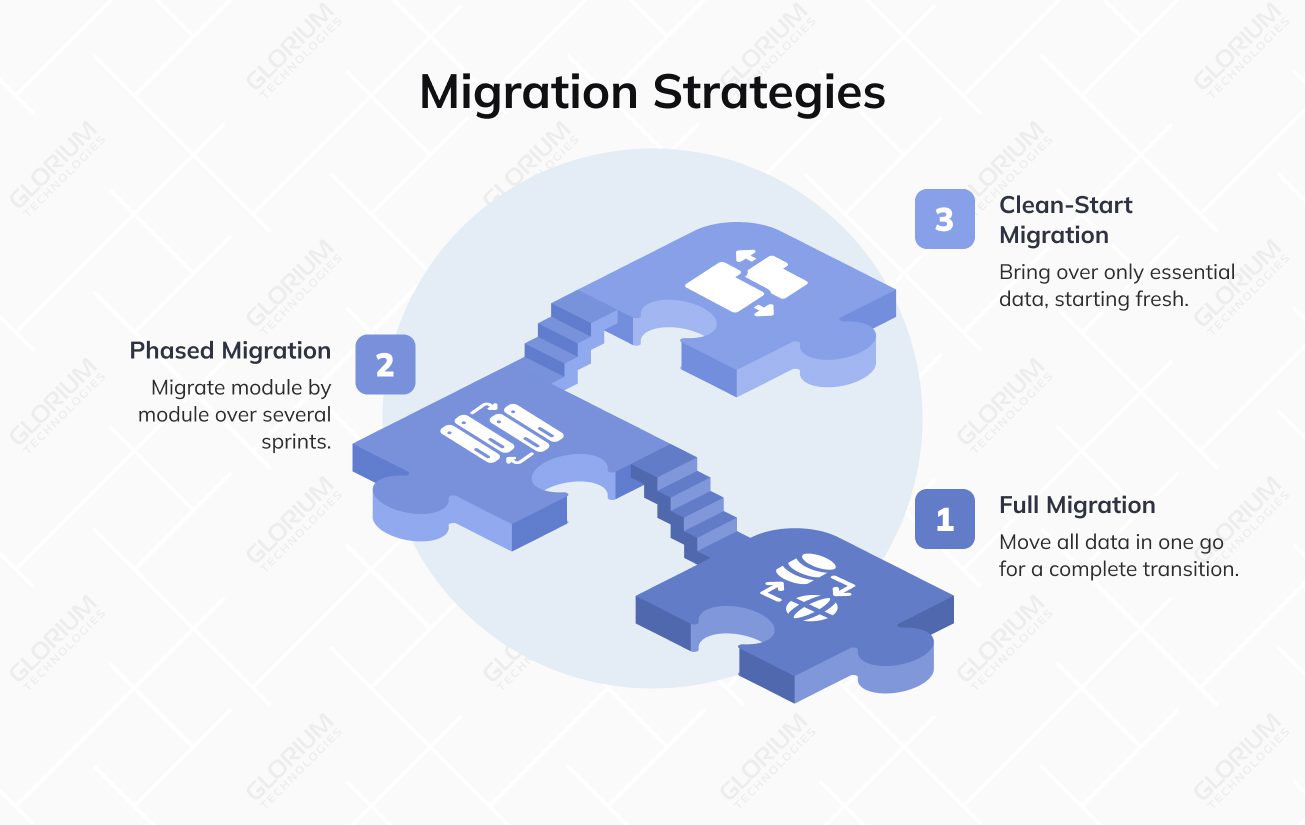
When you’re evaluating migration approaches for your GP to Business Central data migration, remember: every organization is different. The right strategy for you will depend on the nature of your GP environment and the way you prefer to manage risk during the transition. A professional implementation and migration partner can help with the strategy and scope.
It’s a bonus if the approach gives you room to iterate. Make sure you compare a few options and take note of requirements such as GP version compatibility and data volume thresholds before settling on a strategy.
The three primary approaches are:
Once you’ve chosen an approach, you’ll want to set up two migration targets: a sandbox environment for testing and a production environment for go-live.
Microsoft’s Cloud Migration Tool uses Azure Data Factory pipelines, available for GP 2015 and later via BC Assisted Setup. It handles master data, open transactions, and historical data extraction. RapidStart Services uses configuration packages for simpler datasets. For complex environments with extensive customizations or older GP versions, custom ETL pipelines may be needed. Evaluate each tool against your data volume and complexity.
Microsoft recommends running the migration first on a sandbox environment as a test, then on the production environment when ready to go live. Those organizations that have truly put the system through its paces in the safe sandbox environment will have much more success in the early days of going live.
Setting the go-live date early leads to a more focused effort among the team. Enough time needs to be assigned across both the finance and IT departments and the company’s leadership group. Define measurable success criteria before proceeding to the next step.
Clean existing data before you migrate it—not after. Once your migration tools are configured and your strategy is in place, avoid mixing clean and dirty data in the same migration batch. The pre-implementation phase gives you a chance to trash some unnecessary clutter.
If everything is jumbled into one migration run — clean records alongside duplicates, inactive vendors alongside active ones — come validation time, you or your partner will have to go through your migrated data to figure out which records are production-ready. This will cost you time, money, and probably a few rollbacks. Many teams use Excel spreadsheets to track deduplication and field mapping. This works for smaller datasets, but document your decisions so your partner can validate them.
Data quality is critical. Work through the following data quality tasks before migration: deduplicate customer and vendor records, archive inactive accounts, standardize address and naming formats, and reconcile open AP/AR balances. Review open transactions and batches, and validate all records against Business Central field format requirements.
In addition to the data you regularly access, run a trial import of a representative data sample into your sandbox environment to validate field mappings and catch transformation errors before the full migration run.
Organizations migrating from GP can choose one of two foundational configuration paths: SaaS deployment with standard configuration or SaaS deployment with extended customization through extensions. You need to finalize your configuration before you run your first full migration test, and then use it consistently on all subsequent migration runs.
SaaS deployment with standard configuration is commonly used by mid-market organizations. It uses out-of-the-box posting groups, dimensions, and number series as the foundation. Many organizations opt for this path because it’s simpler to maintain and upgrade.
Extended customization through AL extensions records business logic and UI modifications as separate code packages, regardless of when they are deployed. The upside is that it gives you a more flexible platform that can grow with your operations without blocking Microsoft’s twice-annual updates.
Unless your organization is legally or operationally required to use extensive customization, which path is best will depend on your operational needs. Work with an experienced Business Central partner to help you determine which configuration approach is best for your organization and stick with it.
Business Central has surpassed 50,000 customer companies, making it the largest cloud ERP for SMBs by customer count. The ecosystem is mature, the extension marketplace is growing, and the platform’s integration with Microsoft 365, Power BI, and Power Automate gives you capabilities that GP never had.
Think about how your chart of accounts, posting groups, and dimensions will map from GP segments to Business Central’s structure. You will want to configure number series, user permissions, and pre-install required extensions so that your environment is production-ready before migration begins.
Whether you’re comfortable with SQL Server administration or not, every organization running GP needs to understand the basic role that the migration toolchain plays in their transition. The migration execution process is the sequence of running data extraction from GP, transformation into BC-compatible formats, and loading into your target environment in a consistent way, and is a key component to building long-term confidence in your new system and having validated production data.
The migration toolchain is an ongoing process that can be executed in stages—master data first, then open transactions, then historical data. Whether you run the migration yourself or outsource it to a partner, the goal is to make sure your Business Central data is accurate, up-to-date, and useful to you and your finance team.
Under the hood, Microsoft’s Cloud Migration Tool runs on Azure Data Factory with a self-hosted integration runtime that connects your on-premises GP SQL Server database to Business Central online. Your migration partner will configure the runtime and validate connectivity before the first extraction run—this is not a plug-and-play setup, even for GP 2015 and later.
One thing the Cloud Migration Tool will not do for you: payroll. GP payroll data has no direct migration path to BC. Your options are third-party providers like ADP or Ceridian, or a BC Payroll extension. We have seen projects stall two weeks before go-live because the team assumed payroll was covered. Plan this path during the strategy phase.
Sequence matters. Master data first—chart of accounts, customers, vendors, items. Then open documents and transactions. Then historical data, if you’re bringing it over. Validate each batch against your reconciliation baselines before loading the next. The plan is the plan, but adjust the sequence when validation results tell you something is off.
The system must be fully functional before it goes live. 50% of ERP implementations fail on their first attempt, and 51% of companies experience disruptions during go-live for this particular reason—lack of testing and validation. Step six is where you prevent your migration from becoming one of those statistics.
Some organizations just assume the system will work fine when the switch is flipped, but unless they have tested it thoroughly, they could be in for some nasty surprises. Much like the data migration itself, it makes sense to use this time to reconcile your financial records line by line:
Reconciliation alone is not sufficient for go-live readiness. Run end-to-end workflow tests for every critical business process: order-to-cash, procure-to-pay, and financial close. Define sign-off criteria with stakeholders before UAT begins. And remember, a professional partner managing validation catches what internal teams miss during reconciliation.
Plan role-based training for each department and a phased go-live with defined rollback criteria. How you structure training and cutover depends on the nature of your organization and your team’s comfort with change.
A finance team, an operations team, and a management group will each have different needs when it comes to training and adoption. Role-based training ensures each group learns the workflows relevant to their daily responsibilities, not a generic system overview.
88% of participants with excellent change management met or exceeded project objectives, compared with 13% with poor change management — a 7x difference. Structured training programs and hypercare engagements reduce post-go-live panic and accelerate time-to-productivity.
Plan a cutover weekend with defined rollback criteria. Setting clear expectations with stakeholders can help, and managing the transition will require persistence and coordination. Maintain two to four weeks of hypercare support post-go-live and keep GP in read-only mode for six to twelve months for historical reference and audit trail access.
If you’re going to undertake a GP to Business Central migration, you will need to plan for the mistakes that derail most ERP projects. Over 80% of ERP transformations miss budget, timeline, and value goals. Before committing to your migration plan, make sure your team understands the most common failure modes — and how to avoid them:
Budget overruns you may read about in migration reports usually stem from underestimating project staffing (38%), expanding initial scope (35%), and technical/data issues (34%). But professional guidance can help. It doesn’t 100% eliminate every risk, but a partner who has seen these challenges progress into costly workarounds and has helped many businesses plan their migration properly can build safeguards and mitigate the risks.
GP served your organization well for years. But the infrastructure that supported your growth in the on-premises era is now the constraint holding it back. Business Central offers the cloud foundation, the Microsoft 365 integration, and the scalability that GP was never designed to provide.
This guide gives you the structure, but the execution is where complexity lives—version-specific quirks, data cleansing realities, and the organizational change management that no checklist fully captures.
Glorium Technologies has led GP to Business Central migrations across multi-entity organizations, complex data environments, and industry-specific requirements. We don’t sell a tool — we assess your GP environment and recommend a migration path based on what we find. If you want to see a successful migration and start using Dynamics 365 BC with a properly trained team and no costly workarounds, book a free 15-minute introductory call with our experts.
Yes, migration from GP to Business Central is possible without an intermediate step for GP 2015 and later. Microsoft announced that the Cloud Migration Tool handles the direct path for GP to BC to Business Central online. Azure Data Factory and the self-hosted integration runtime allow you to connect your on-premises database to BC with the help of a specific SQL Server configuration before the first run. The runtime needs only SQL permissions on your GP database. If you’re not on the GP 2015 and later version, and for example, are using GP 2013, you will need to upgrade to GP 2015 first and then use a custom ETL approach to extract and transform your Dynamics GP data outside the standard tooling.
The timelines for migration depend on what data you’re carrying over to your new system. Based on our experience, simpler migrations with minimal customization and clean data can take about 12 weeks. For a multi-entity environment, however, this can increase up to six months, especially if you have extensive ISV add-ons, custom integrations, and years of unreconciled transaction history. One aspect that you should also consider is the connection speeds between your on-premises environment and Business Central Online. The speed can affect replication time, and you need to assess it to minimize downtime during cutover.
If you’re using the Cloud Migration Tool, you can handle the core data, like the chart of accounts, customers, vendors, items, open transactions, historical transactions, classes, and Vendor 1099 data. However, it doesn’t handle the custom tables, third-party provider, or BC payroll extensions, module-specific configurations, and so on. This is where you’d want to collaborate with a professional who can migrate Dynamics GP data properly.
Keep in mind that when you run data replication with the migration tool, your Business Central Online tenant is continuously overwritten with each replication run. It’s essential that you don’t make manual changes to migrated tables in your tenant database until the replication is over. If you notice that the table fails to load, isolate it before running the next batch. The upgrade overwrites data in your environment, so once validation is complete, run the data upgrade and then disable cloud migration before cutover to prevent further overwrites.
Not directly, no. GP runs on Dexterity and VBA; BC runs on AL extensions—a fundamentally different development framework. That said, you probably don’t need to rebuild everything. Many popular ISV solutions already have BC equivalents on Microsoft AppSource. The practical approach is to inventory your customizations, identify which ones have off-the-shelf BC replacements, and budget development time only for the custom functionality that has no existing equivalent. Some organizations find that half or more of their GP customizations were workarounds for limitations that BC handles natively.
Don’t plan on migrating all of them at once. Microsoft-native tools do support multi-company migration within the same BC tenant, but each company runs as a separate migration. Follow the best practices from experts who have migrated multiple companies from GP to BC: Assign users to the appropriate new user groups in Business Central before you begin. Groups are not automatically assigned, so at least one user must be manually configured with the Intelligent Cloud permission set to manage migration activity. Review delete permissions carefully, as only users with the correct access level should be able to interact with Dynamics GP users’ migrated data. This is also the right time to assess your on-premises tables and decide which ones need custom ETL vs. a clean rebuild.
Even as your GP to Business Central cloud migration is complete, you still need to hold on to your GP. Don’t rush to decommission it, and keep it in read-only mode for six to twelve months after go-live. Even if it’s an outdated system, the on-premises solution remains valuable as a reference system during the adoption period of the new ERP. Once your team feels comfortable working with Business Central and it’s confirmed as your operative environment, archive the GP on-premises database. Don’t forget to document the archive location and decommission the server infrastructure.