







How to Handle Data Migration from NAV to Business Central without Losing a Record
Updated April 13, 2026

 Summarize in ChatGPT
 Summarize in ChatGPT
You’ve decided to move from Microsoft Dynamics NAV to Business Central. The system has served you well, but now that Microsoft’s own lifecycle page confirms that NAV 2016 extended support ends on April 14, 2026, NAV 2017 ends on January 2027, and NAV 2018 ends on January 2028, it’s time to find a system that will hold your business together and deliver more than it costs to maintain it. Microsoft Dynamics 365 Business Central is a great solution, especially for small-and medium-sized businesses.
However, any form of data migration brings out the neatly tucked anxiety and fear of losing records, of entering months of chaos, or of grinding to a halt. This scenario isn’t fictional, but it’s also avoidable. Success here requires planning, thorough preparation, and the right team to guide the organization through NAV-to-Business Central migration. This article will guide you through the necessary steps of a successful migration without business disruption; it’ll answer your questions and tell you when it’s time to make a strategic move and address a professional team.
Content
Microsoft has already ended mainstream support for several older NAV versions, which means no new feature updates and many more security patches. There is also a growing compliance risk the longer you wait. Migration from a legacy system is a strategic decision that pays off well beyond go-live day. Business Central is a cloud-first ERP platform with automatic updates, remote access from any browser, and built-in compliance features that NAV simply cannot match. Here is what the move gets you:
Moving to Business Central is a major step. The exact time frame and level of difficulty will depend on your NAV version, how much customization you need, and how much data you have, but the steps are always the same. Sticking to a phased approach can help you manage complexity and keep operations running during the upgrade process.
It’s also important to use the right tools. You need to be careful with your custom fields, legacy tables, and old records to preserve the data quality, aka data accuracy. Yet even the best toolset can’t save a poorly managed project. An experienced team that knows both on-premises systems and the Business Central cloud version can spot Navision to Business Central migration challenges early. Do the migration properly, and you can set your business up for long-term efficiency and future-proofing.
Before you migrate a single record, you need to know what you are working with. Migration of NAV 2013 will be different from 2015, 2016, 2017, or 2018 versions since they have their own structural differences that affect how data maps to Business Central.
You can start by taking a full inventory of your data entities: customers, vendors, GL accounts, items, open transactions, and historical records. Then you can dig into your customizations – some of them can be standard, and some might be bespoke. Remember that data from tables with C/AL code customizations cannot be carried forward from Dynamics NAV. Those customizations must be converted to AL extensions before migration can begin.
Third-party add-ons and integrations that work fine in NAV may not translate directly into BC. Plus, you should take note of requirements such as SQL Server version compatibility. Your on-premises solution must use SQL Server 2016 or later, with database compatibility level 130 or higher, to qualify for cloud migration. Once you’ve completed a thorough audit, you’ll want to produce two deliverables: a full customization inventory and a gap analysis mapping the NAV add-on to their AppSource replacements.
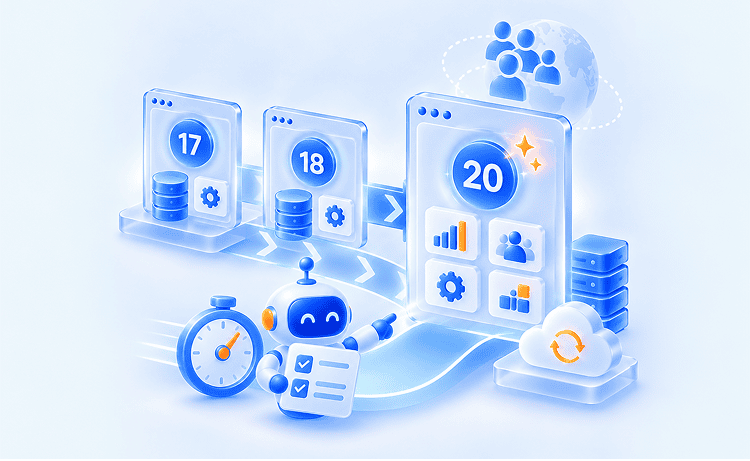
Once your audit results are in hand, draw a hard line between what migrates and what stays behind. Microsoft requires a multi-hop upgrade path: NAV must first upgrade to Business Central on-premises version 14, then to at least version 25, before migrating to Business Central online. This is a staged technical process with intermediate upgrades at each hop.
A full migration moves everything at once, while a phased approach moves data in stages to lower the risk of problems. Historical data archiving keeps your BC environment up to date while keeping older records available in other places. Set your go-live date early and work backward from it. For most SMBs, a typical NAV-to-Business Central migration takes three to six months. Small near-standard implementations can complete in four to eight weeks, while heavily customized multi-company setups may require six to twelve months or more. Realistic milestones only happen when finance, operations, and IT are aligned from the start.
You can use Microsoft’s Cloud Migration Wizard to handle standard scenarios. But complex customizations may call for a partner-led approach. At Glorium Technologies, scoping starts with the hard questions — what’s actually in your system, what needs to move, and where the real risks are hiding. This way, we ensure mid-project surprises stay off the table.
You can take one of two approaches to pre-migration data work: clean everything in place, or selectively migrate and archive. You need to choose your approach before you begin the migration tooling, and then apply it consistently across all data sets.
Let’s say you decide to clean in place. In this case, you need to standardize formats across date fields, currency values, and address structures. Then work through your records methodically: remove duplicates, flag inactive entries, and cut orphaned data that no longer connects to anything meaningful. What’s left should be intentional.
If you go the selective path, archive historical data to an external store and migrate only active records. Business Central SaaS provides 80 GB of base storage plus per-user allowances — 3 GB per Premium license, 2 GB per Essential, 1 GB per Device. Exceeding this limit blocks new environment creation, though it does not interrupt transaction processing. Historical ledger entries that don’t need to live in BC can be offloaded to Azure Data Lake Storage using the bc2adls tool, or exported as a BACPAC file for restoration in Azure SQL Database.
The table below gives you a starting reference for common NAV-to-BC field mappings.
| NAV Field | Business Central Equivalent |
| Customer Posting Group | Customer Posting Group (remapped schema) |
| Gen. Business Posting Group | Gen. Bus. Posting Group |
| Vendor No. | Vendor No. (adjusted number series) |
| Item Tracking Code | Item Tracking Code (revised structure) |
| Salesperson Code | Salesperson/Purchaser Code |
Data migration into a poorly configured environment creates problems that are tedious to unwind. Get the foundation right first, starting with the deployment model. Cloud (SaaS) gives you automatic updates and remote access with minimal IT overhead; on-premises keeps data within your own infrastructure; hybrid splits the difference for businesses with specific regulatory or operational constraints.
Once that’s settled, work through the core configuration — chart of accounts, dimensions, posting groups, and number series. You also need to set up users, roles, and permissions that reflect how your organization actually operates, not a default template. Install any required extensions or ISV solutions before data arrives.
Whether your team handles AL development in-house or not, every organization needs to understand the role that C/AL-to-AL conversion plays in the process. The Txt2Al tool — only available with version 14 — converts C/AL objects to AL. The workflow involves exporting C/AL objects to the new TXT syntax, running the Txt2Al conversion, opening the resulting AL files in Visual Studio Code, and compiling them into .app extension packages. Not all C/AL customizations convert cleanly; some require manual rewriting in AL.
You’ll need to confirm that your Microsoft 365 and Power BI integrations are connected and functioning. Remember that bringing data into an environment where integrations aren’t ready can create a second round of cleanup work.
Please note that NAV user permissions do not replicate to Business Central online — BC requires Microsoft Entra ID accounts, and permissions must be configured independently.
For NAV 2018 and later, the primary migration mechanism is Microsoft’s Cloud Migration Tool, which runs on Azure Data Factory with a self-hosted integration runtime (SHIR). The SHIR is installed on the local machine hosting your SQL Server database and manages all cloud-to-on-premises communication without requiring you to open inbound ports or configure firewall rules.
If you have an older NAV version, you need RapidStart data packages, custom ETL pipelines, or partner tools like Zetadocs and Jet Reports integrations. Which one you need will depend on your setup and what you’re moving.
Regardless of the tool you’ve chosen, migrate in stages. Start with master data: customers, vendors, items, chart of accounts. Open transactions come next, followed by historical data once the core records are confirmed clean and correctly mapped.
The cloud migration capabilities are optimized for batches of up to 250 companies — Microsoft recommends reducing the company count per run for optimal performance. During this process, all existing users in the online tenant are automatically added to the Intelligent Cloud user group with read-only access, and your on-premises system remains the primary transaction source until migration is complete.
Validate each batch before moving to the next. Catching a mapping error in master data is a minor fix; catching it after open transactions are in is a much larger problem.

How will you confirm that everything landed correctly in Business Central? As with most aspects of ERP migration, it depends on the complexity of your NAV setup. Business Central sandbox environments are isolated from production and allow you to run test migrations, verify data, fix problems, and rerun replication multiple times before going live.
What do you need to validate after a test migration? Start with GL balances — what’s in NAV should match BC to the penny, no exceptions. From there, compare open sales orders, purchase orders, and inventory values side by side. Then go a level deeper: spot-check field-level data like customer posting groups, vendor terms, and item unit costs using BC’s built-in reconciliation reports.
Run at least two full test cycles in the sandbox. Fix what breaks, then rerun from the top. Production cutover doesn’t happen until a sandbox run comes back with zero critical discrepancies.
If you’re going to onboard users to Business Central, you will need to plan change management well before the cutover date.
Before granting anyone production access, make sure your users are set up correctly with Microsoft Entra ID accounts and appropriate BC permission sets. NAV permissions do not carry over — each user needs to be manually provisioned. Getting this wrong creates access issues that disrupt operations in the first critical days after go-live.
You will also need to train your team on the BC web client, set up Power BI dashboards for reporting, and configure Power Automate flows to replace any manual processes. Plan a hypercare period of two to four weeks after cutover: dedicated support for data discrepancies, workflow issues, and user adoption gaps.
Every NAV migration has its own complexity profile shaped by your version, customization depth, data volume, and company count. But the mistakes organizations make are remarkably consistent. Here are the most common ones we see:
Underestimating the multi-hop upgrade path: Many organizations expect a direct lift-and-shift from NAV to the cloud. Each intermediate hop (NAV to v14, v14 to v25, v25 to BC online) requires its own testing cycle, and most teams do not budget for that when scoping the project
Skipping data cleansing: Every duplicate record, orphaned entry, and inconsistent field format you carry forward multiplies validation time on the other side. Organizations that skip pre-migration data cleanup often find themselves running far more testing cycles than planned
Trying to replicate every C/AL customization: Not every customization needs to survive the migration. Some can be replaced with standard BC functionality or AppSource apps. The Txt2Al tool converts C/AL to AL, but it is only available with version 14, and not all conversions are clean. Evaluate each customization critically before committing to conversion
Skipping sandbox testing: Going directly to production without sandbox validation is the single fastest way to turn a three-month project into a twelve-month ordeal
Underinvesting in training and change management: The technical migration can succeed perfectly and still fail if users cannot navigate the new system. Budget for training early — not as an afterthought
Data migration from NAV to Business Central is a structured, multi-phase project, not a one-click upgrade. Getting the audit right at the beginning saves months of rework downstream.
If you are planning a NAV-to-Business Central migration, Glorium Technologies can help. Our team handles the hardest parts — auditing your customizations, converting C/AL to AL extensions, and managing the multi-hop upgrade path — so your internal team can focus on business operations during the transition. Schedule a NAV environment audit to start with a clear picture of your migration scope.
You can, but you should scope it carefully. Business Central SaaS provides 80 GB of base database storage plus per-user allowances (3 GB per Premium license, 2 GB per Essential, 1 GB per Device). Exceeding the storage limit blocks new environment creation, though it does not interrupt transaction processing. For historical ledger entries that do not need to live in Business Central, consider offloading them to Azure Data Lake Storage using the bc2adls tool, or exporting them as a BACPAC file for restoration in Azure SQL Database. Archiving older records keeps your production environment lean and reduces validation time during migration.
It depends on your Business Central version. NAV 2018 and BC14 can migrate directly using Microsoft’s Cloud Migration Tool. If you’re running an older version — NAV 2013 through 2017, you need to take an intermediate upgrade step first. For many businesses, running a sandbox environment first helps validate the path before committing to a full cutover.
Business Central doesn’t impose a hard cap on historical data, but database size directly affects licensing costs, so bringing everything across isn’t always the most cost-effective move. A practical approach is to migrate active and recent records into BC, then archive obsolete records outside the system. What’s worth keeping live should be driven by your business needs.